
Staff with the Manage clients and Manage client profiles permissions can change a client’s profile details at any time. Below is a list of the details that can be modified on a client’s profile, each with a detailed explanation about what this change will affect.
Customizable client profile field settings
You can customize most default and custom client profile fields from the Client Profile Fields page. For steps, see Manage and customize client profile fields. Each field has the following settings:
Setting | Description |
|---|---|
Status | Set the field to ON or OFF. When a field is set to OFF, it's hidden from clients and staff. The information clients already entered is kept. Image, First name, Last name, and Email/Username are always on. |
Applies to | Choose who the field is for:
All three options are always available, even if your business doesn't use relationships. If you remove relationship types later, the field keeps its setting but doesn't match anyone. |
Visible to | Choose who can see the field:
If you select Staff only, only When staff add or edit a profile is available under Where should we ask for it?, and Don't ask can't be selected. |
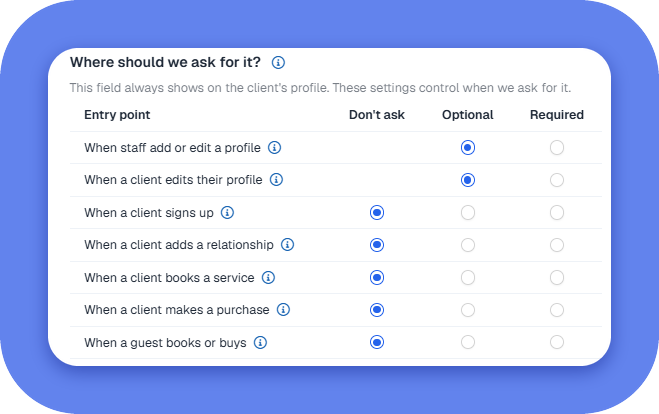
Where should we ask for it? | Choose when clients and staff are asked for the field. For each entry point, select one of the following options:
The entry points are:
If Visible to is set to Staff only, only When staff add or edit a profile is available, and Don't ask can't be selected. Note: Some fields are required to use certain features. For example, date of birth is required to book services with age restrictions. |
Default client profile fields
These fields are set up in the system by default, but you can deactivate them to prevent clients from having to fill them out.
Field | Description |
|---|---|
Image | A profile image that represents the client. For more information, see Add or change a client's profile image. |
First Name | The client’s first name. |
Last Name | The client’s last name. |
The email address used by the client to sign in. All client email notifications are directed to this email address.
| |
Cell Phone | The cell phone number at which the client can be contacted. SMS client notifications are directed to this number.
|
Home Phone | The client's home phone number. |
Work Phone | The client's work number. |
Date of birth | The client’s date of birth. When this field isn’t required and is left empty:
|
Gender | The client’s gender. The default options are Male, Female, and Prefer not to say. The third option can be renamed to suit your business needs. When a client selects the third option or leaves the field empty, the system automatically creates a gender-neutral profile. |
Address | The client’s home or work address. This entry can be used for billing and promotional purposes. Direct mail campaign postcards are sent to this address. |
City | The client's city. This field is auto-updated based on your business location or the client’s home location for businesses with multiple locations. It may also display the associated state/province and country. |
Home Location | The business location the client visits most often. |
Referred By | Displays the name and email address of the client who referred the client to your business. Reward points can be given for client referrals. When a guest redeems a guest pass, this field is automatically set to the member who sent the pass. If this field is already populated with a different client, the existing value isn't overwritten. |
Lead Source | The origin of the lead, such as referral, website, or social media. |
Lead created by | The staff member responsible for creating the lead. |
Time zone | The time zone the client selects based on their location. This option is only available when you enable the Allow clients to adjust time zone option in your Booking Policy Settings. When OFF, your business's time zone is used. Note: When the client isn't signed in, the Class schedule within the schedule widgets and Client Portal is displayed using the time zone in the client’s browser. If unavailable, the it defaults to your business’s time zone. |