
You can add custom fields to client profiles to track extra info not included by default. Checkbox, Dropdown, and Choose One fields can also help you filter client lists and reports. For example, if clients choose how they heard about you, you can filter for those who picked Facebook and send them targeted marketing.
Required information for custom fields
When you add a custom client field, you must include the following information:
A field type. The selected field type will determine how the field is configured, whether a default value is required, and whether the field is filterable.
A field name.
Settings for who the field applies to, who can see it, and when clients and staff are asked for it.
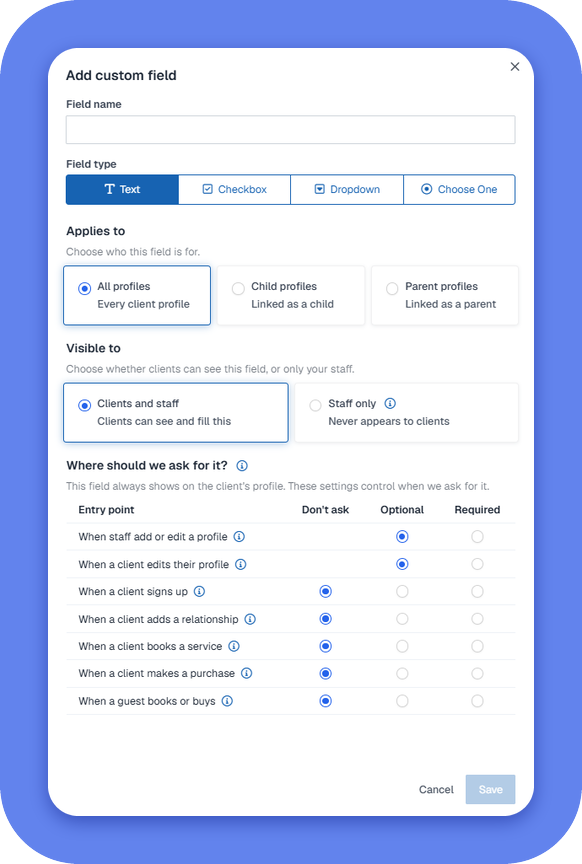
Field types
The following table describes the different types of custom fields that can be configured for the client profile.
Field type | Description |
|---|---|
Checkbox | A filterable field that can be checked or unchecked. You must select a default value of checked or unchecked. |
Dropdown | A filterable field where a selection is made from a list of options in a dropdown menu. You can add multiple selections and set a default value. |
Choose One | A filterable field where a selection is made from a list of options. Only one option can be selected. You can add multiple selections and set a default value. On the Client Profile Fields page, this field type appears as Radio in the Type column. |
Text | A box that clients can use to enter text. This can be used to respond to question or provide additional details. Since the information can be in any format, text fields can't be used to filter your client list or reports. |
Settings
The following table describes the settings that can be configured for a custom client profile field.
Setting | Description |
|---|---|
Applies to | Choose who the field is for:
|
Visible to | Choose who can see the field:
|
Where should we ask for it? | Choose when clients and staff are asked for the field, such as when a client signs up, books a service, or makes a purchase. For each entry point, select Don't ask, Optional, or Required. For more information, see Client profile fields. |