
After a client is booked into an event, you can cancel that client’s booking from the Elevate Staff App or Staff Back Office. Clients can cancel their event booking through either the Client Portal or Achieve Client App.
Changing a client’s attendance status is another way to cancel a service booking. For more information, see Change a client’s attendance status.
Key tips
If a visit that is paid for with a session pass or a membership is marked as Early Cancel, the visit will return to the session pass or membership. Returned visits won’t automatically pay for existing unpaid visits. To use a session pass or membership to pay for an unpaid visit you must reconcile the visit. For more information, see Reconcile unpaid visits.
Enabling the Event Booking Canceled by Staff notification will automatically select the checkbox to send the related notification to the affected clients when a staff member is canceling an event booking. If the Event Booking Canceled by Staff notification is disabled, the staff member must manually select which notifications to send to the affected clients.
Cancel one event booking from a client’s profile
Browser– Staff Back Office
To cancel one event booking from a client’s profile in the Staff Back Office:
Click Search
 at the top of the screen and enter the client's information, then click their name in the list.
On the side menu, click Attendance.
On the Attendance menu, click Upcoming Schedule.
In the list, find the event you want to cancel. You may have to browse the list, use the Search option, or filter the list to find the event.
Under the ACTION column, click Action
 and select Cancel Session.
In the confirmation popup, click OK.
Mobile – Elevate Staff App
To cancel one event booking from a client’s profile in the Elevate Staff App:
Tap the Clients tab.
Enter the client’s information in the Search box, then tap their name in the list.
Tap Options
 then tap Attendance.
Slide the event that needs to be canceled to the left and tap Cancel.
In the confirmation popup, tap OK.
Cancel one event booking from the schedule
To cancel one event booking from the schedule:
Open the App Drawer
 then click View All > Schedule.
Click the event session you want to cancel for a client, then click View attendance list.
Find the client you want to cancel the event for, then click Action
next to the entry.
Click Cancel visit.
In the confirmation popup, click OK.
Cancel multiple event bookings for one client
To cancel multiple event bookings for one client:
Click Search
at the top of the screen and enter the client's information, then click their name in the list.
On the side menu, click Attendance.
On the Attendance menu, click Upcoming Schedule.
In the list, select the checkboxes to the left of the events you want to cancel.
Click Early Cancel Selected.
In the confirmation popup, click OK.
Cancel multiple event bookings for multiple clients
To cancel multiple event bookings for multiple clients:
Open the App Drawer
then click View All > Setup > Services > Events.
Click the event you want to cancel.
Click Manage Schedule.
Next to the event instance for which you want to cancel bookings, click Enrollment List.
Select the checkbox on the top right hand corner of each event session you want to cancel.
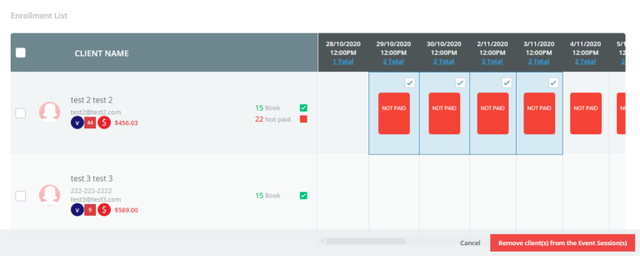
Click Remove client(s) from the Event Session(s).
Under Notification Option, set the Inform the clients that their visit was canceled option to ON to notify the clients of the cancellation. Your options are Via Email, Via SMS, and Via Push.
Click View/Edit Message
 to edit the email, SMS, or push notification before sending it to the client.
Click Yes, Remove to cancel the client’s event session.