
To access the Asset Widget, open the App Drawer then click View All > Setup > Website Widgets > Asset.
Understanding the Asset Widget
The Asset Widget is one of the widgets you can add to your website, allowing clients to book your Book-a-Spot assets without leaving your site, which makes booking easier for them and saves your team time. Book-a-Spot assets are services that let clients reserve equipment or spaces at your business, such as courts, rooms, or bikes.
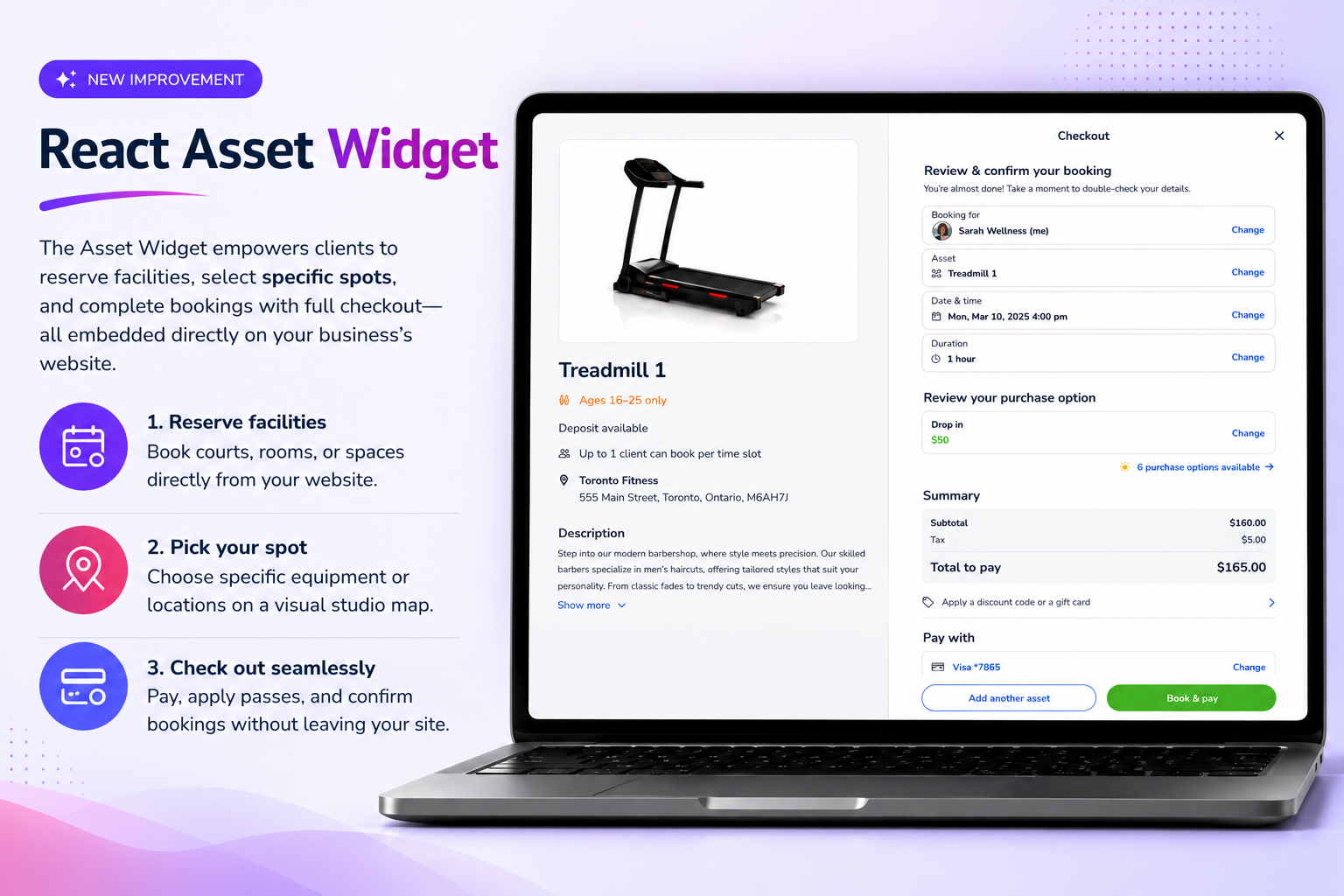
What you can do with the Asset Widget
Assets appear in the widget only if clients can book them directly, which you control with the Client can book asset setting. For more information, see Book-a-Spot asset settings. Clients can use the Asset Widget to:
Browse availability by date and time or by asset.
Select a specific spot from a visual layout, if the asset category has one.
Join the wait list for fully booked times, if your business policies allow.
Book for themselves or for a family member.
Pay with a Purchase Option, points or prizes, or a new Purchase Option, or book now and pay later if your policies allow.
See a confirmation of their booking, including the asset, date, and time.
Getting started with the Asset Widget
Before clients start booking assets from your website, complete the following steps:
Set up your assets – Create or modify your Book-a-Spot assets. Then, for each asset you want in the widget:
Under Asset Booking Rules, select Asset can be booked separately from services.
Set the Client can book asset option to ON.
Add at least one price and duration under Price and Duration.
Set the asset's working hours.
Set the purchase rules to specify how clients can pay.
Embed the widget – Add the widget to your website so that your clients can book assets without being redirected to another page.
Start taking bookings – Once everything is set up, clients can book your assets from your website.
Key tips
Signing in
Clients can browse availability without signing in. They sign in or create an account when they're ready to book.
Spots and layouts
If an asset category has a layout, clients select their spot from a visual layout that shows which spots are available, unavailable, and selected. If a category doesn't have a layout, clients choose from a list.
Wait list
Fully booked times appear with a wait list option if your business shows wait list times. Clients can join the wait list if your business policies allow.
Assets that require approval
If an asset requires approval, the booking shows as requested until your staff members approve or deny it in the Staff Back Office.